Fulfillment Sync
Reflect WooCommerce completion in Odoo deliveries or update WooCommerce when Odoo outgoing deliveries finish.
Fulfillment Sync requires an order that has already been synchronized and contains its stored Odoo sale-order reference.
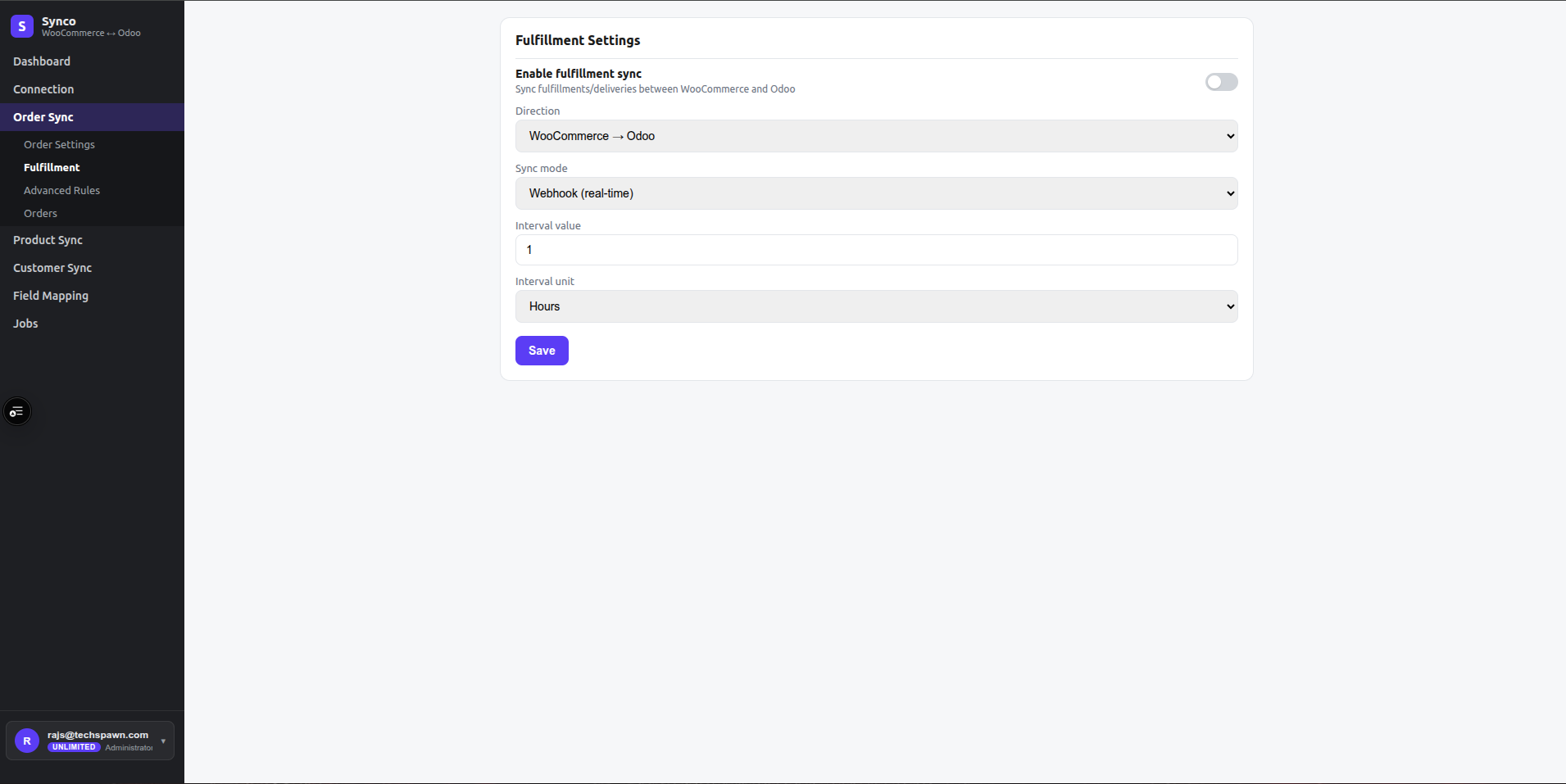
Direction
WooCommerce → Odoo
When a linked WooCommerce order reaches completed, Synco finds pending outgoing Odoo deliveries, fills their move quantities from demand, and attempts to validate them. Orders in any other WooCommerce status are left unchanged.
Odoo → WooCommerce
Synco reads outgoing deliveries for the linked Odoo sale order. It records delivery IDs and tracking references in WooCommerce metadata. When every outgoing delivery is done, it changes the WooCommerce order to completed and can add the tracking reference to the customer note.
Automation mode
- Webhook reacts to supported source events.
- Periodic checks at the saved interval.
For periodic mode, set an interval value and choose minutes, hours, or days. The Enable fulfillment sync toggle must be on for either direction.
Before enabling
- Confirm order synchronization works and the order has an Odoo reference.
- Verify Odoo creates outgoing pickings for the chosen product and warehouse routes.
- Test a single order that can safely be completed/delivered.
- Check tracking, delivery state, and the job log.
Delivery validation changes operational stock records. Test in a non-production workflow or with a controlled order before enabling broad automation.