Order Settings
Control which WooCommerce orders synchronize and how Synco creates Odoo sale orders, invoices, payments, and customers.
The Order Settings master toggle controls the entire order workflow. When it is off, the settings remain visible but are inactive.
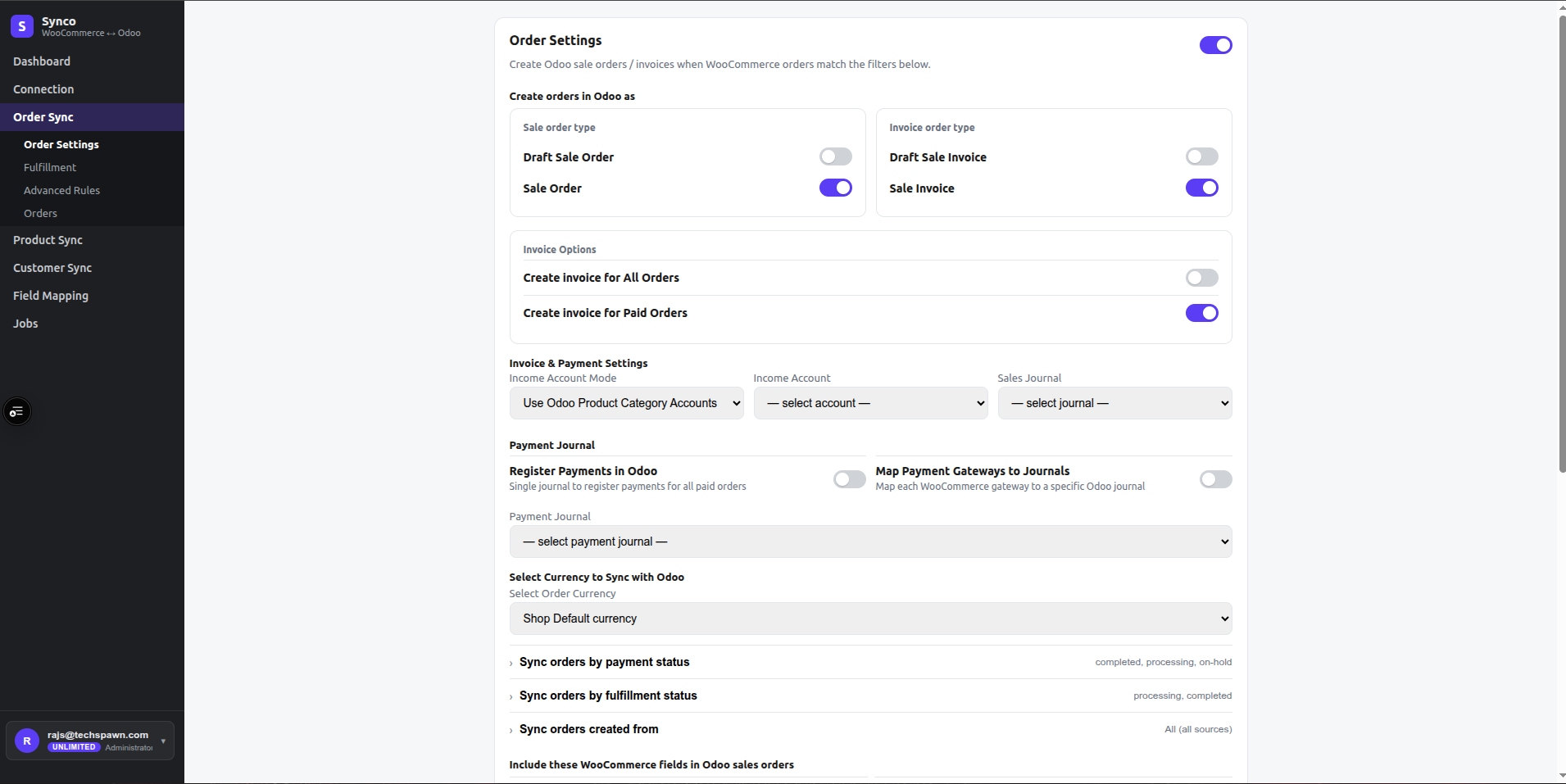
Create orders in Odoo as
Choose a sale-order state and optional invoice state:
- Draft Sale Order leaves the Odoo sale order in draft and disables invoice choices.
- Sale Order creates/confirms the sale order according to the workflow.
- Draft Sale Invoice creates an invoice without posting it.
- Sale Invoice creates the configured posted invoice workflow.
Use Invoice for all or Invoice for paid only to define invoice eligibility.
Invoice and payment settings
When an invoice option is enabled, configure:
| Setting | Purpose |
|---|---|
| Income account mode | Use the Odoo product-category accounts or one fixed income account. |
| Income account | Fixed Odoo account used when fixed mode is selected. |
| Sales journal | Journal used for created customer invoices. |
| Register payments | Register a payment after an eligible invoice is created. |
| Map payment gateways | Use gateway-aware payment behavior. |
| Payment journal | Odoo journal used for registered payments. |
The account and journal lists are loaded from the connected Odoo database.
Eligibility filters
WooCommerce status
Select any of: pending payment, processing, on hold, completed, cancelled, refunded, or failed. All statuses removes the restriction.
Fulfillment proxy
WooCommerce uses order status for fulfillment state. Filter by processing, completed, on hold, pending, or cancelled when the workflow needs a narrower set.
Order source
Choose all sources or restrict to web checkout, admin, REST API, point of sale, subscription, mobile, or custom source values. A custom source must match the order’s created_via value.
Date range
Enable the range and choose Sync from and Sync to dates. Orders outside the saved range are not eligible for the configured workflow.
Data and numbering options
- Order note and Order tags include the corresponding WooCommerce fields.
- Tax mapping applies configured tax behavior in Odoo.
- Add prefix prepends a value such as
WEB-to the Odoo reference. - Use WooCommerce order numbers preserves the store-facing number where the target workflow supports it.
- Refund sync handles eligible refund changes.
- Cancel sync applies cancellation behavior to the linked Odoo order.
- Payment method sync carries payment method information.
Single-customer mode
Enable Map orders to a single Odoo customer, enter its email, then choose whether it applies to all orders or guest orders only. Use this only when individual customer records are intentionally not required.
Safe rollout
Save the settings, run one representative manual order, and check the Odoo sale order, invoice, journal entries, taxes, customer, and job log before enabling automatic processing.