Orders and Fulfillment
Order Rules
Build prioritized conditions that skip, route, annotate, invoice, tag, or cancel matching orders.
Order Rules evaluate normalized order data. Enabled rules run from the lowest priority number upward. All conditions inside one rule must match.
Condition fields
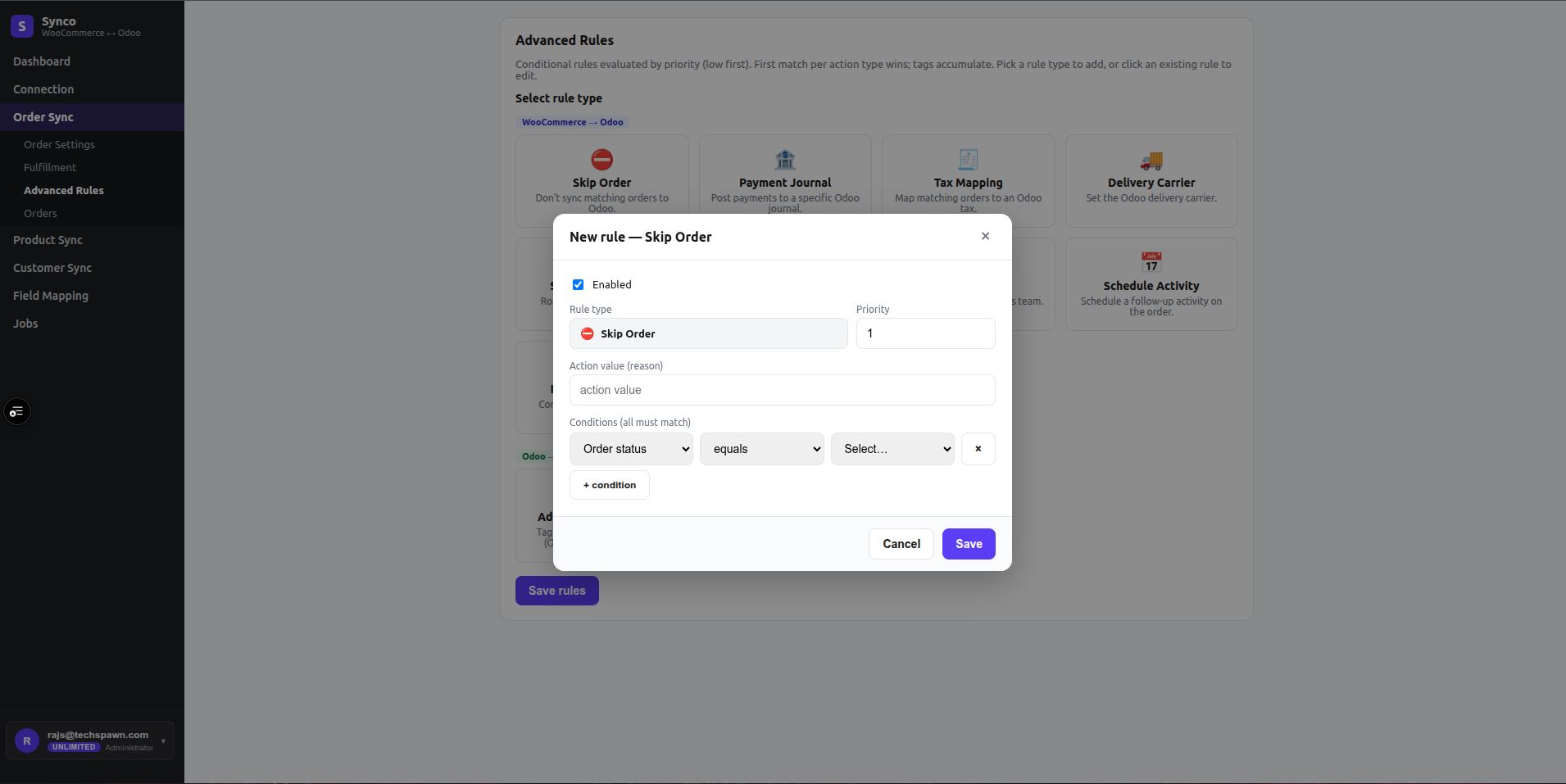
Rules can inspect:
- Order status, currency, total, payment-method slug, and payment-method title
- Billing country, state, city, and customer email
- Shipping country and shipping total
- Customer note
- Created-via source
Available operators are equals, not equals, contains, greater than, less than, and in list. Numeric comparisons should be used only with numeric fields. For in list, enter comma-separated values.
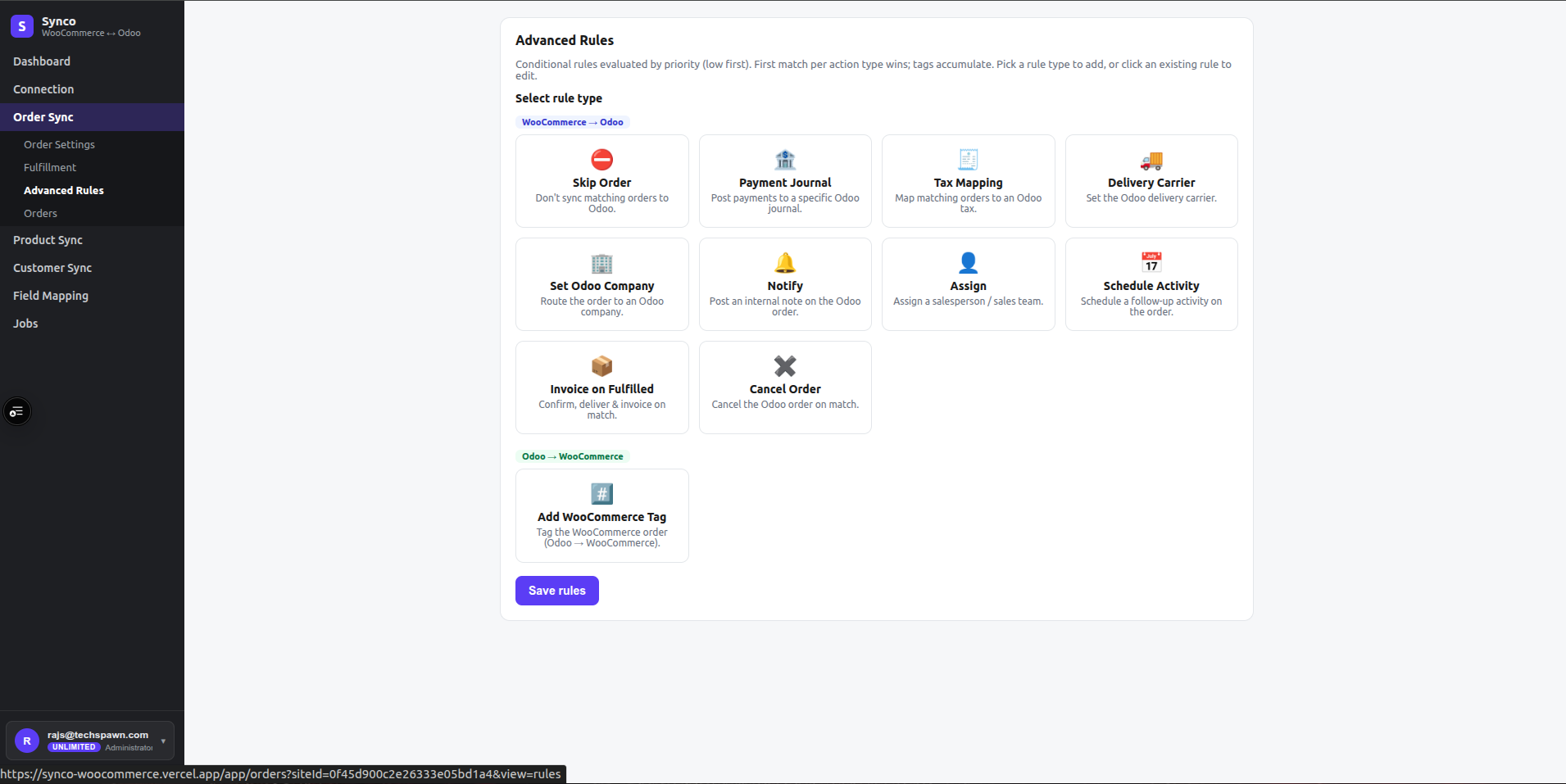
WooCommerce → Odoo actions
| Rule type | Result |
|---|---|
| Skip Order | Does not create/update the matching order in Odoo. |
| Payment Journal | Uses the supplied Odoo journal ID. |
| Tax Mapping | Applies the supplied Odoo tax ID. |
| Delivery Carrier | Sets the carrier value. |
| Set Odoo Company | Routes the order to the supplied company ID. |
| Notify | Adds an internal note to the Odoo order. |
| Assign | Sets a salesperson and/or sales team ID. |
| Schedule Activity | Creates a To Do, Call, Email, Meeting, or Upload Document activity with a due offset. |
| Invoice on Fulfilled | Can confirm the sale order, validate delivery, invoice delivered or all quantities, and auto-post. |
| Cancel Order | Cancels the matching Odoo order. |
Odoo → WooCommerce action
Add WooCommerce Tag adds the configured tag to the matching WooCommerce order.
Evaluation behavior
- A rule with no conditions always matches.
- Disabled rules are ignored.
- The first matching rule of each action type wins.
- Tag rules accumulate, so more than one matching tag can be added.
- Rules are saved as one ordered set; edit priorities deliberately.
Create a rule
- Open Order Sync → Rules.
- Select a rule-type card in the appropriate direction group.
- Enable the rule and choose its priority.
- Enter the action values.
- Add one or more conditions.
- Save the rule editor, then select Save on the rules page to persist the full set.
Test rules with manual orders before automatic sync. A broad skip, cancel, company, or invoice rule can affect every eligible order.