Customer Sync
Create or update Odoo contacts from WooCommerce customers with individual/company and eligibility filters.
Customer Sync sends WooCommerce customer records to Odoo contacts (res.partner). The Odoo ID is stored in the WooCommerce customer’s meta_data, allowing later jobs to update the same contact.
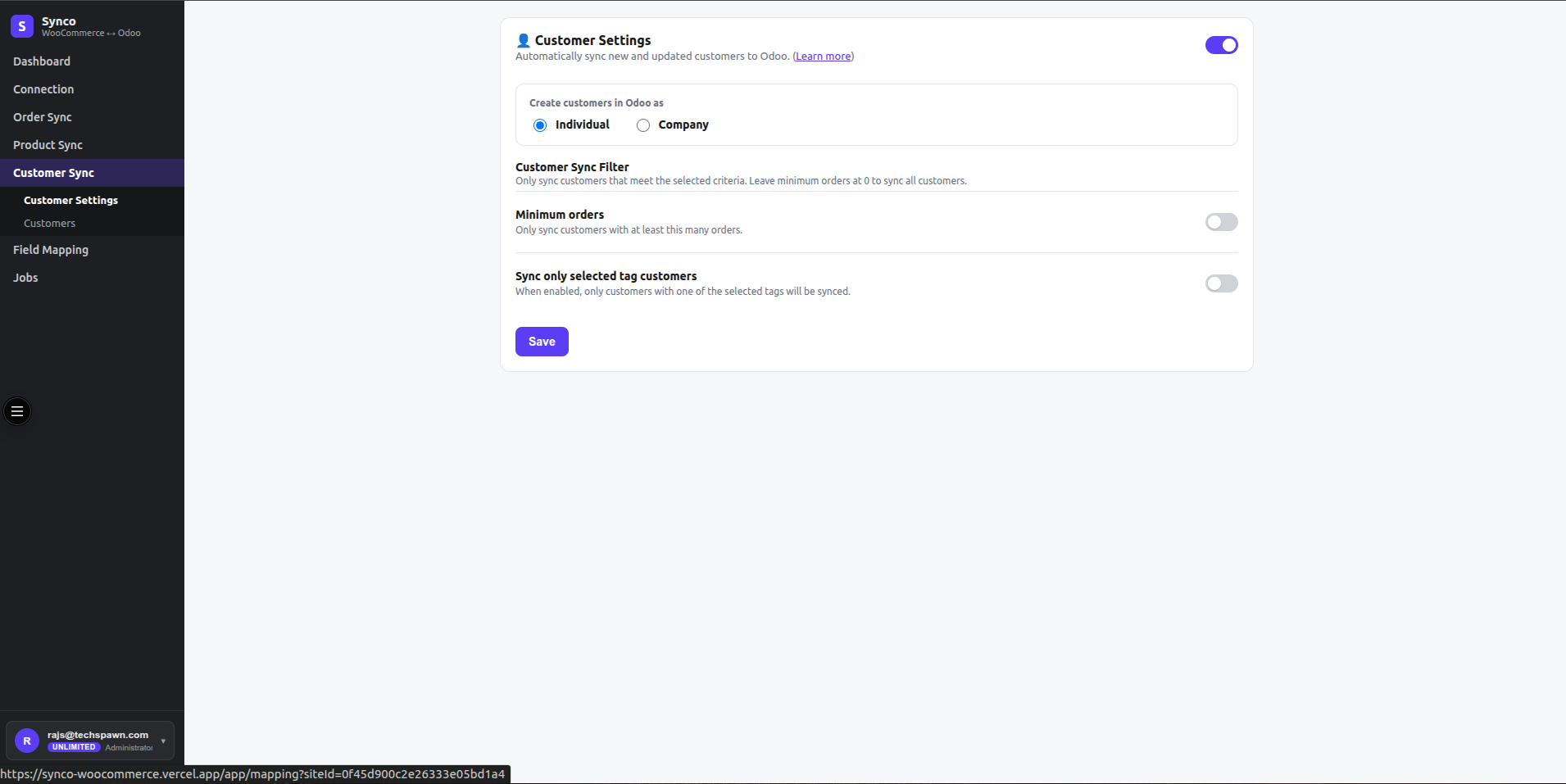
Enable customer sync
- Open Customer Sync and turn on the master toggle.
- Choose how new Odoo contacts should be created.
- Configure any eligibility filters.
- Save the settings.
- Switch to the customer list for manual selection and Sync → Odoo.
Supported automatic customer events can also queue the workflow while the master toggle is enabled.
Create customers as
- Individual uses the customer’s first/last name, username, or email for the Odoo contact name.
- Company uses the WooCommerce billing company when available and marks the Odoo partner as a company.
Synced values
The standard workflow maps:
- Name and email
- Billing phone
- Address line 1 and line 2
- City and postcode
- Individual/company state
- Odoo customer rank
- Enabled custom field mappings
Filters
Minimum order count
Enable the filter and enter a minimum. A customer whose orders_count is below the threshold is skipped.
Customer tags
The tag filter reads configured WooCommerce customer metadata keys such as customer_tags or tags. If selected tag values are configured and the customer has no match, the job is skipped. WooCommerce does not provide a native customer-tag field, so confirm the metadata produced by your store or extension before relying on this filter.
Matching and updates
- A stored Odoo ID causes Synco to update that exact Odoo contact.
- Without a stored ID, Synco creates a new contact and writes its ID back to WooCommerce.
- Reverse Odoo-origin customer jobs require an email address and use email to find an existing WooCommerce customer before creating one.
Troubleshooting
- Customer sync disabled — skipped: enable and save Customer Sync.
- Odoo not configured — skipped: verify the Odoo connection.
- Min-orders filter: lower the threshold or choose a customer with sufficient orders.
- Tag filter: confirm the customer metadata key and comma-separated tag values.
- Partner has no email: add an email in Odoo before an Odoo-origin customer job.
Review the complete result in Jobs.