Connect Odoo
Verify an Odoo server, choose its database and protocol, then map the company and stock locations.
Odoo configuration belongs to a connected WooCommerce store. Select the correct store in Synco before saving credentials or locations.
Connect the server
Open Connection, then select Connect Odoo Server.
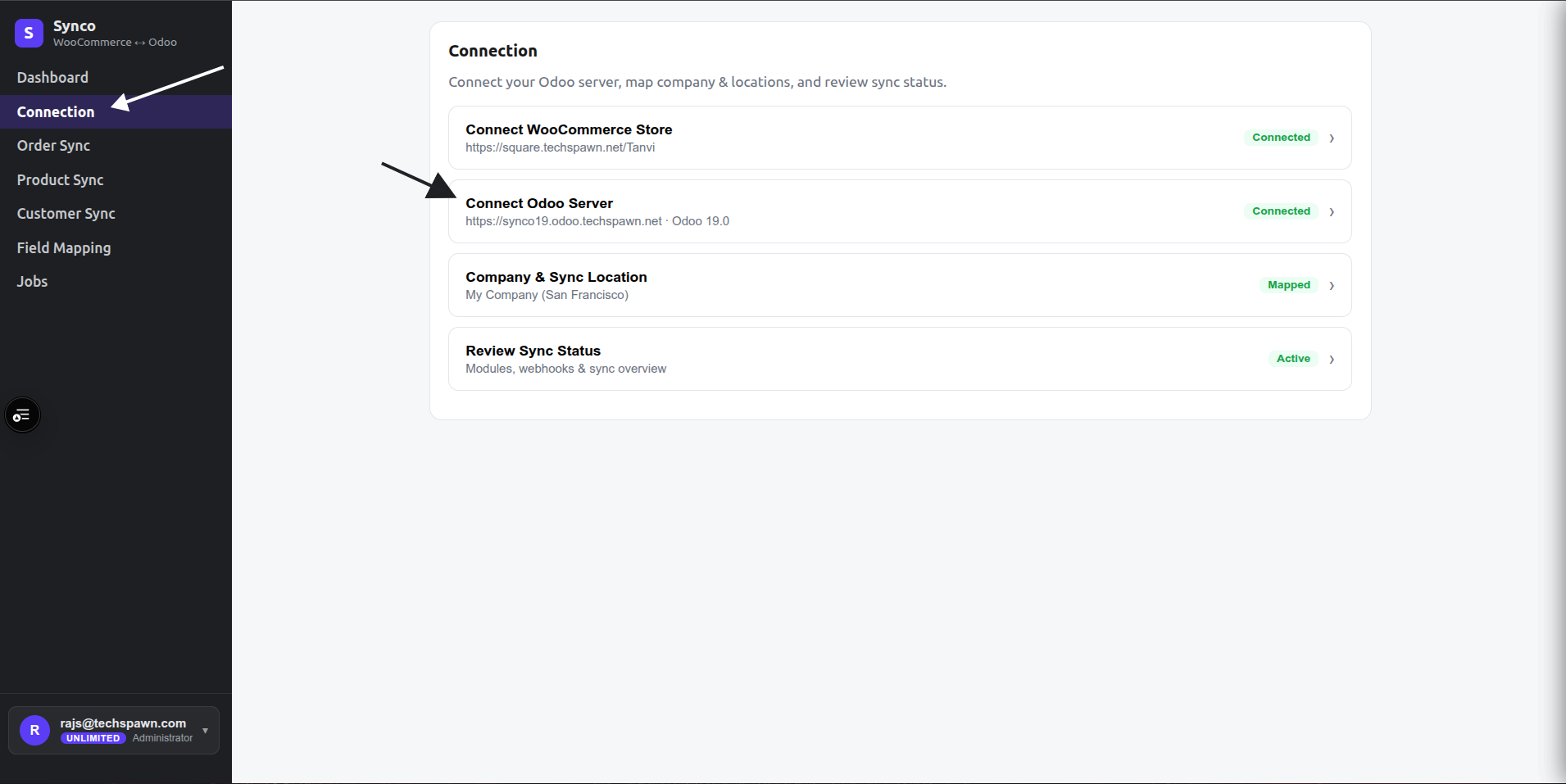
- Open Connection and select Connect Odoo.
- Enter the Odoo server URL, for example
https://odoo.example.com. - Wait while Synco discovers available databases and detects the Odoo version.
- Choose the API protocol offered by the form:
- Legacy for the JSON-RPC workflow.
- JSON-2 when it is supported by the target Odoo installation.
- Select the database. If automatic discovery is unavailable, enter the exact database name.
- Enter the Odoo login email/username and API key or password.
- Select Save & verify.
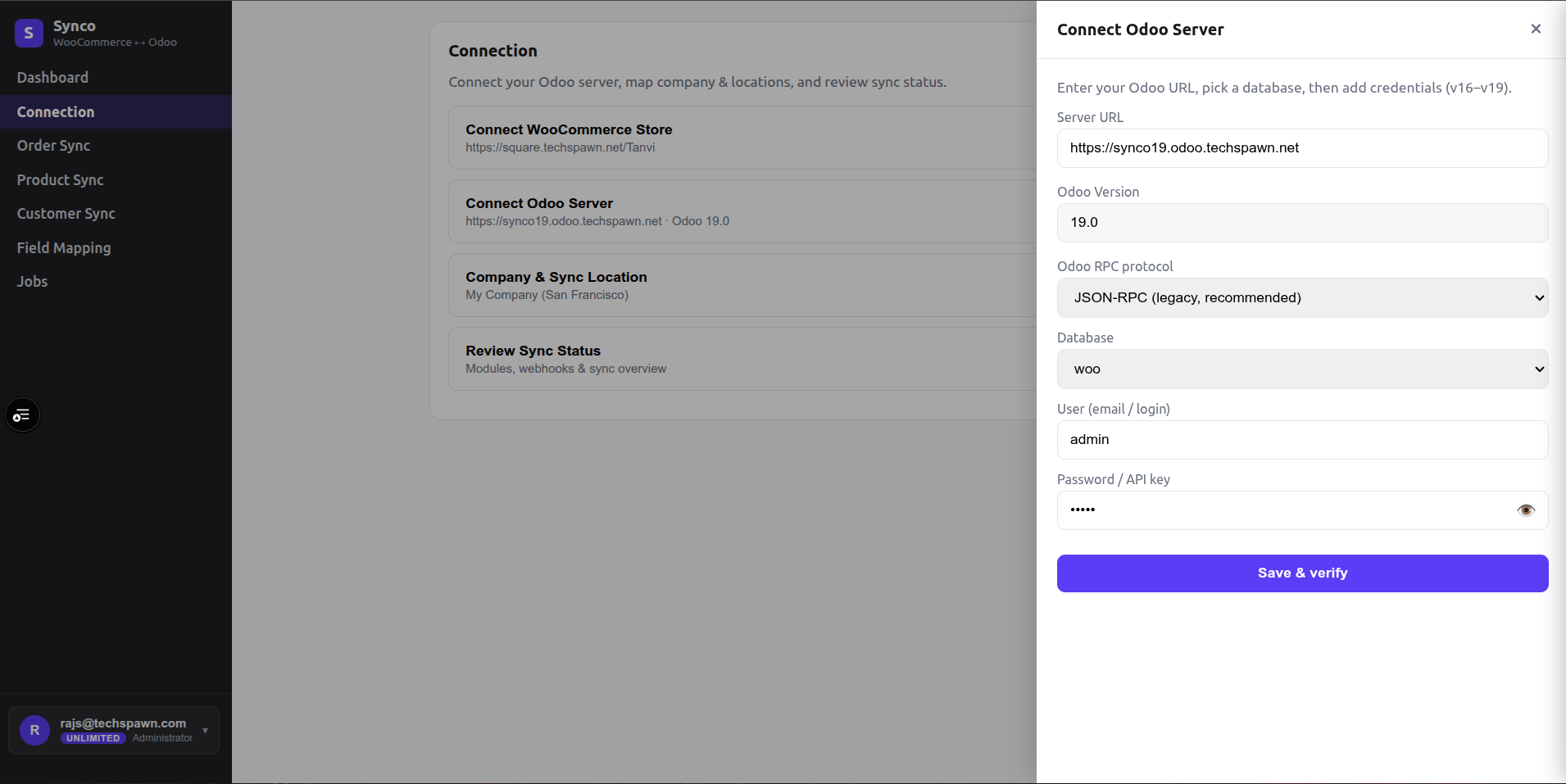
Synco requires the server URL, database, user, and password/API key. Credentials are tested before they are stored. A successful result displays the detected Odoo version and marks the connection as verified.
Select the company and locations
After verification, open Company & Sync Location:
- Choose the Odoo company that owns synchronized records.
- Map each WooCommerce location shown by Synco to an Odoo stock location.
- If the interface offers Create new, Synco can create an Odoo location using the WooCommerce location name.
- Save the mapping.
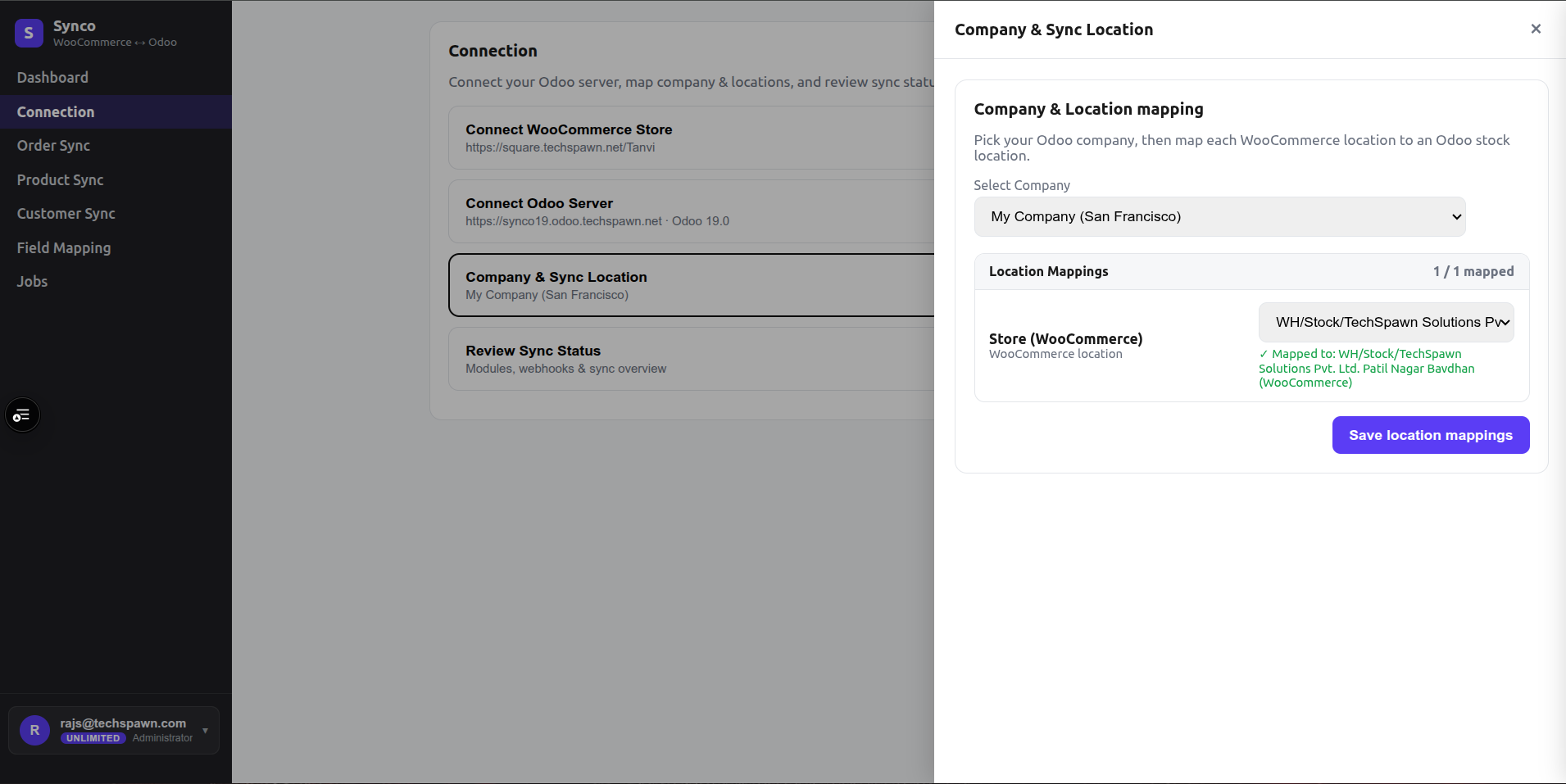
Inventory operations use this mapping to read or update the correct Odoo location. Review it whenever warehouses or store locations change.
Review connection status
Use Review Sync Status to check required Odoo modules, registered webhooks, and the currently configured product, order, and stock directions. Resolve missing module or connection warnings before enabling automatic synchronization.
Security guidance
- Use a dedicated Odoo user with only the access required for the selected workflows.
- Prefer an API key where your Odoo version supports it.
- Update the saved credential immediately when the Odoo user or key changes.
- Never place production credentials in documentation, screenshots, or support messages.